· Android · 4 min read
How to Fix the "App Not Installed" Error on Android (5 Easy Solutions)
Stuck on the 'App not installed' error? Here are 5 simple, step-by-step solutions to fix the problem and get your Android app working.
Nothing is more frustrating than finding the perfect app, downloading the APK, and being met with the “App not installed” error. This common Android issue can be caused by several factors, from storage problems to security settings.
This guide provides a direct, step-by-step app not installed error fix. We’ll walk through the 5 most common solutions to get your app running.
Why Does the “App Not Installed” Error Happen?
Before diving into the fixes, understanding the cause can help. The error is your phone’s general message for a failed installation. This usually happens when:
- Your phone’s security settings are blocking the installation.
- You don’t have enough storage space.
- The downloaded APK file is corrupt or incomplete.
- A conflicting version of the app is already on your device.
- Your system’s package installer is clogged or has an error.
5 Easy Solutions for the “App Not Installed” Error
Work through these steps one by one. The first solution is the most common fix, especially for apps downloaded from the internet.
1. Enable “Install Unknown Apps”
This is the most common reason for the error, especially when you’re installing an APK from outside the Google Play Store. Android blocks this by default for security.
Here’s how to allow it:
- Open your Settings app.
- Navigate to Apps > Special app access.
- Tap on Install unknown apps.
- Find the app you’re using to install the APK (like your browser, e.g., ‘Chrome’, or your file manager).
- Toggle the Allow from this source switch to On.
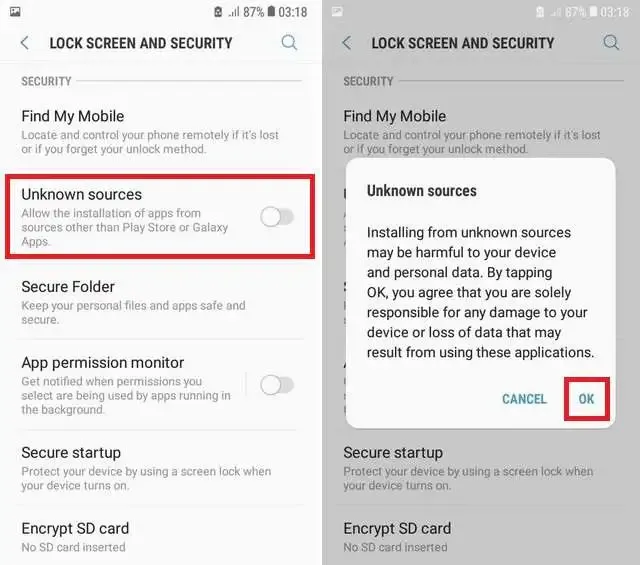
Now, try installing the APK file again.
2. Free Up Storage Space
This one is simple. If your phone’s storage is full, it can’t install new apps. An app may look small, but the installation process requires extra temporary space.
Check your storage in Settings > Storage. If you’re running low, try:
- Uninstalling old apps you no longer use.
- Deleting old photos, videos, or downloaded files.
- Clearing the cache of large apps like social media.
3. Clear Cache for the Package Installer
The “Package Installer” is the built-in Android service that handles all installations. Sometimes, its temporary files (cache) can become corrupted.
- Go to Settings > Apps > See all apps.
- Tap the three-dot menu in the top-right corner and select Show system.
- Scroll down and find Package Installer.
- Tap on Storage & cache.
- Hit the Clear Cache button.
4. The APK File Might Be Corrupted
If the solutions above don’t work, the problem might not be your phone—it might be the file you downloaded. An app not installed error fix is often just finding a better file.
Files can become corrupted during download or may have been uploaded incorrectly by the source. The best solution is to delete the APK file and download it again from a trusted source.
5. Reset App Preferences
This is a last-resort option, as it will reset all your preferences for all apps. It won’t delete your data, but it will reset default apps, notification settings, and background data restrictions.
- Go to Settings > System > Reset options.
- Tap on Reset app preferences.
- Confirm the action and try the installation again.
Avoid Errors with Safe, Verified APKs
The “App not installed” error is often a symptom of downloading bad, outdated, or unsafe files from the internet.
Using a trusted platform is the best way to ensure your files are clean, complete, and 100% working. This is the entire mission of HappyMod.
At HappyMod, every single app is scanned for viruses and tested by an active community. This process ensures that what you download is safe and functional—saving you the headache of corrupted files and security risks.
Instead of searching for random APKs, get your apps from a source that guarantees they work.
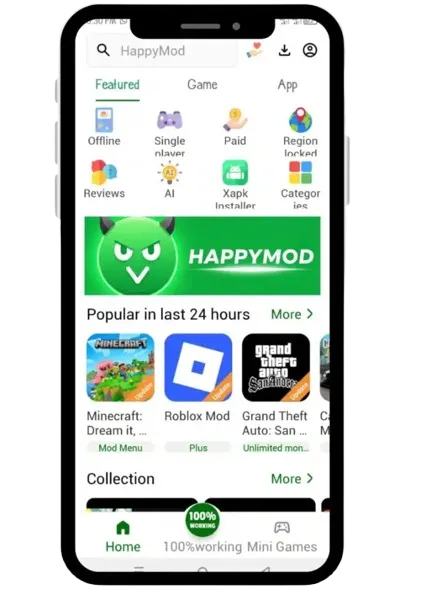
Check out the vast library of working mods and apps on the official happymodd.app site.